AWS VPC – Internet Gateway, Route Tables, NACLs


In this second part of my AWS VPC series, I will explain how to create an Internet Gateway and VPC Route Tables and associate the routes with subnets. Then, I’ll show you how to create Network Access Control Lists (NACLs) and Rules, as well as AWS VPC Security Groups.

Profile photo of Jason Coltrin

Jason Coltrin

Jason Coltrin has been working in IT for more than 17 years. He holds an MCSE 2003 Security+ plus various Palo Alto and SonicWall firewall certifications. He also is an avid Linux Administrator and currently works in higher education.

Profile photo of Jason Coltrin

Latest posts by Jason Coltrin (see all)

In the previous article, we provided an overview of Amazon AWS VPC security, created an initial VPC, and built two subnets. We now have a good foundation for moving into the core of a Virtual Private Cloud on the Amazon AWS platform. If you haven’t already done so, go back to the first article in the series and make sure you’ve caught up for the following steps.

Create an AWS VPC Internet Gateway ^

We want to provide our upcoming instances with a way to get out to the Internet by creating an Internet Gateway (IGW). If you would like to learn more about VPC Internet Gateways, you can find an informative document here.

In the VPC Dashboard, click on Internet Gateways, followed by Create Internet Gateway. Provide the Name tag with something similar to IGW-4sysops, and then click Yes, Create.

Create Internet Gateway

Create Internet Gateway

After we create the IGW, you will see that the state of the IGW is detached. So, we now need to attach a VPC to our new IGW. Do this by clicking on the Attach to VPC button, select the VPC you created previously (4sysopsVPC), and then hit Yes, Attach.

Attach IGW to VPC

Attach IGW to VPC

Create AWS VPC Routes ^

Now that we have our Internet Gateway attached to our Virtual Private Cloud, we want to create some route tables. We’ll define two Route Tables, as shown in red in the following diagram. The first will be a Public Route Table from the Public-Subnet to the IGW, which will allow our Public-Subnet to reach the Internet. The second route will be a Private Route Table that will allow both our Public and Private subnets to communicate with one another.

Public and private route table diagram

Public and private route table diagram

To create our first Public Route Table, go to the VPC Dashboard, then click on Route Tables > Create Route Table. Provide the Name Tag: Public-Route, select the 4sysops VPC, and then click Yes, Create.

Create public route table

Create public route table

Next, with the Public-Route selected, click on the Routes tab and click Edit.

Edit public routes

Edit public routes

Click Add Another Route for traffic going outside of our VPC.

Enter the following: Destination: 0.0.0.0/0 target: igw: 4sysops, and then click Save.

Create public route

Create public route

The 0.0.0.0/0 subnet says that any traffic not bound for our local network will go out the Internet Gateway.

Next, we need to associate the Public-Route with our Public-Subnet. With Public-Route selected, click on the Subnet Associations tab, click Edit, place a checkmark next to the 10.0.1.0/24 | Public-Subnet, and then click Save.

Create Public Subnet Public Route association

Create Public Subnet Public Route association

In addition to the Public-Route Table, we now want to create a Private-Route Table. So, again, go to Route Tables > Create Route Table. Provide the Name Tag: Private-Route, select the 4sysops VPC, and then click Yes, Create.

There is no need to edit or add any additional routes under the Route Tab for the Private-Route. This is a private route only within our VPC, so all traffic is okay to communicate with any other subnet inside 10.0.0.0/16. However, we do need to associate the Private-Route with our Private-Subnet. To do this, again,with the Private-Route selected, on the Subnet Associations tab, click Edit, place a checkmark next to the 10.0.2.0/24 | Private-Subnet, and then click Save.

Create Private Subnet Private Route association

Create Private Subnet Private Route association

When we’ve created our Route Tables, we should see the following tables listed, as well as an explicit subnet association for each of them (Public-Route to Public-Subnet and Private-Route to Private-Subnet):

Completed Route Tables

Completed Route Tables

Create AWS VPC Network Access Control Lists and Rules ^

Next, we’ll create our Network Access Control Lists: Private-NACL and Public-NACL. If you’re unfamiliar with NACLs, they are similar to Security Groups in that you can shape traffic defined by rules. Unlike Security Groups, NACLs operate at the subnet level and are stateless, whereas Security Groups operate at the instance level and are stateful. You can find some useful information about NACLs here and how they compare to Security Groups here. I found the following diagram helpful in regard to NACLs.

NACL vs. Security Group diagram

NACL vs. Security Group diagram

In the main VPC menu, go to Security > Network ACLs > Create Network ACL, add the Name tag: Private-NACL, select the 4sysops VPC, and then click Yes – Create.
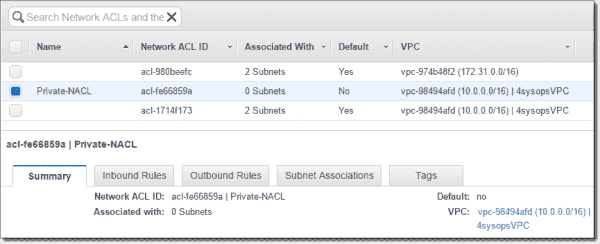
Create network ACL Private NACL

Create network ACL Private NACL

Create a new inbound rule by first clicking on the Inbound Rules tab and then Edit. Add Rule #100” > All TCP coming from Public-Subnet source 10.0.1.0/24, we select Allow and then Save.

Create Private NACL inbound rule

Create Private NACL inbound rule

Because NACLs are stateless, do the same in the Outbound Rules: ALL TCP destination: 10.0.1.0/24 Allow (Public-Subnet).

Create Private NACL outbound rule

Create Private NACL outbound rule

Next, go to the Subnet associations tab and associate the Private-NACL with the Private-Subnet.

Private NACL and Private Subnet association

Private NACL and Private Subnet association

So, now our Private-NACL has a traffic policy with our Public-Subnet, within our VPC, and is associated with our Private-Subnet.

We will now essentially replicate our Private-NACL to a new Public-NACL, with similar rules.

In the main VPC menu, go to Security > Network ACLs > Create Network ACL, add the Name tag: Public-NACL, select the 4sysops VPC, and then click Yes – Create.

Create network ACL Public NACL

Create network ACL Public NACL

Again, create a new inbound rule for the Public-NACL. However, since I will be managing this network from my home computer, I will want to allow all TCP traffic from my external IP address. Replace this address with your own external IP address.

Edit > Rule #: 100, Type: All TCP, Protocol TCP (6), Port Range: ALL, Source: x.x.x.x/32, Allow/Deny: ALLOW. > Save. Doing this creates a rule to allow traffic coming from my IP address with a /32 CIDR to access the Bastion instance. If you wanted to, you could limit this to just port 22 or 3389 for remote administration.

Create Public NACL inbound rule

Create Public NACL inbound rule

Add another rule for the Private-Subnet to communicate with the Public-Subnet.

Inbound Rules > Edit / Add another rule > Rule #: 200, Type: All TCP, Protocol TCP (6), Port Range: ALL, Source: 10.0.2.0/24, Allow/Deny: ALLOW > Save.

Create Public NACL inbound Private Subnet rule

Create Public NACL inbound Private Subnet rule

Similar to our inbound rules, because we are modifying stateless connection traffic, we need to do the same for outbound traffic.

Outbound Rule tab > Edit > Rule #: 100, Type: All TCP, Protocol TCP (6), Port Range: ALL, Source: x.x.x.x/32, Allow/Deny: ALLOW. > Save

Outbound Rule tab > Edit > Rule #: 200, Type: All TCP, Protocol TCP (6), Port Range: ALL, Source: 10.0.2.0/24, Allow/Deny: ALLOW. > Save

Create Public NACL outbound rules

Create Public NACL outbound rules

We’ll now associate the Public-NACL to the Public-Subnet by clicking Subnet Associations > Edit and select Public-Subnet > Save.

Associate Public NACL with Public Subnet

Associate Public NACL with Public Subnet

Now we have our NACLs set up to allow all TCP traffic to and from our home IP address to the Public-Subnet and, also, all TCP traffic between the two subnets is allowed.

Create AWS VPC Security Groups ^

Here, we’ll create two Security Groups for the instances which we will create shortly. Go to VPC Dashboard > Security > Security Groups > Create Security Group > Name tag: Public-SG, Group name: Public-SG, Description: To be used by the bastion instance, VPC: 4sysopsVPC.

Create Public SG security group

Create Public SG security group

Along the same lines as the other security measures, we’ll create a second security group named Private-SG.

Go to VPC Dashboard > Security > Security Groups > Create Security Group > Name tag: Private-SG, Group name: Private-SG, Description: Used for private instances, VPC: 4sysopsVPC.

Next, we’ll configure the inbound rules for the Security Groups, and we’ll narrow down the traffic to just the management protocols we’ll use to access the instances. First, we’ll start with the Private-SG and go to the Inbound Rules tab > Edit > Type: SSH (22) Protocol: TCP (6) Source: Public > Save. Creating this rule will allow port 22 from the public security group to access the private security group.

For the Public-SG inbound, we want SSH traffic coming from the Private-SG and also SSH coming from my IP address. Public-SG > Inbound Rules tab > Edit > Type: SSH (22) Protocol: TCP (6) Source: x.x.x.x/32. > Save.

Public SG inbound rules

Public SG inbound rules

With the majority of our work complete, our next article in the three-part series here will show how to create two AWS instances in our VPC, how to securely connect to the Bastion instance, and, finally, how to use Pageant and SSH to connect through our Bastion host to our Private Instance.

-1+1 (No Ratings Yet)


AWS VPC – Overview, setup, subnets


AWS provides the capacity to create a Virtual Private Cloud (VPC), which is a virtual network dedicated to your AWS account. In the first part of this three-part series, I will show you how to create a VPC with the corresponding subnets.

Profile photo of Jason Coltrin

Jason Coltrin

Jason Coltrin has been working in IT for more than 17 years. He holds an MCSE 2003 Security+ plus various Palo Alto and SonicWall firewall certifications. He also is an avid Linux Administrator and currently works in higher education.

Profile photo of Jason Coltrin

Latest posts by Jason Coltrin (see all)

VPC Definition and security model ^

A VPC is a network logically separated and isolated from other virtual networks inside the AWS cloud. In the same manner an administrator would secure servers behind a firewall and access control lists on premise, you can also isolate instances (virtual servers) inside your VPC.

The Shared Responsibility Model is a term that AWS uses to define “security of the cloud” in addition to “security in the cloud.” Because “security in the cloud” is our responsibility, we need to protect our own content, platform, applications, systems, and networks. A VPC with multiple logical networks is a good start in securing your AWS network resources.

This will be a multi-part series of articles. In this first article, we describe our demo network with a diagram, create a new VPC, and build two subnets in separate availability zones. Our second article here demonstrates how to create an Internet Gateway, build both Private and Public Route Tables, Private and Public Network Access Control Lists, and Private and Public Security Groups, as well as set associations among these components. Lastly, in our third article here, we show how to set up an instance in each of our networks (Public and Private), test connectivity, and ensure only our Bastion instance has the ability and keys necessary to connect to our Private instance, via SSH and Pageant.

Visual Representation of the Demo Network ^

The following diagram outlines how our VPC network will look when we complete our task.

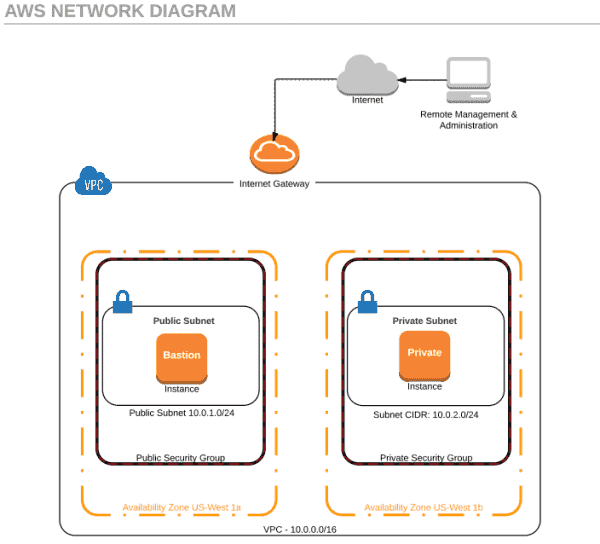
AWS network diagram

AWS network diagram

As displayed in the diagram, by creating a second Security Group and subnet, 10.0.2.0/24, we effectively isolate the instances in that subnet from the outside world. Our Private instance will not have any public IP addresses or ports open to the outside. Our Bastion instance is used much like a management gateway and is the only point of entry for the management of our Private instances. While inbound traffic is secured, our Internet Gateway allows Private instances to connect to the Internet and make outbound requests for updates and patches.

How to create a VPC in Amazon AWS ^

If you want to follow along with this tutorial, go ahead and sign up for a new Free Tier account with AWS here. The free tier is good for 12 months and allows you to run one instance per month or two instances for half of a month. If you leave both instances running all month, you may be charged a nominal amount of money on your credit card (a credit card is required to sign up for the free account). Should you not want to run this setup in production, either shut down your instances after completing your testing or delete your second instance. With only one instance running all month, or two instances running for half of a month, you probably won’t see a bill for a year.

After signing up and providing your credit card information, go ahead and sign in to the console. The default AWS console look and feel has changed recently. The first thing to do in the console is change your Availability Zone to U.S. West (N. California). There may be other availability zones closer to you that have multiple zones in the location, but I recommend you keep both zones in the same location. Do this by changing the default option in the location drop-down menu, next to your name, in the upper-right corner of the console. Next, browse down to the Networking section, and click on VPC.

AWS Console select VPC

AWS Console select VPC

While we could use the VPC wizard, we are going to create one from scratch. You can disregard the default VPC for now.

Create an AWS VPC ^

Click on Create VPC.

Provide the Name Tag of your choice. We’ll use 4sysopsVPC.

Give it the CIDR block 10.0.0.0/16. This CIDR will give you 65k hosts. If you think you may reach this limit, by all means, plan ahead by providing more hosts than you think necessary, and set the CIDR to /8.

Leave Tenancy as default and click Yes, Create.

Create VPC

Create VPC

That’s all we need to do for our VPC.

Create AWS VPC Subnets ^

Next, we’ll create and name our two subnets, place them in the appropriate VPC, select the Availability Zone, and define the CIDR blocks.

Select Subnets, then Create Subnet.

Create first subnet

Create first subnet

We’ll give our first subnet a Name tag: Public-Subnet.

Next, select the VPC we previously created, named vpc-xxxxxxxx (10.0.0.0/16) | 4sysopsVPC.

Choose the first availability zone, us-west-1a.

Provide the CIDR block 10.0.1.0/24.

AWS Public Subnet settings

AWS Public Subnet settings

When complete, we’ll find the new subnet listed with our other two default subnets:

AWS Public Subnet information

AWS Public Subnet information

Now, create another subnet by clicking on Create Subnet again. However, this time, we will change the Name tag to Private-Subnet, the VPC to vpc-xxxxxxxx (10.0.0.0/16) | 4sysopsVPC, the Availability Zone to us-west-1c, and the CIDR block to 10.0.2.0/24. The result should look similar to the following:

AWS Private Subnet information

AWS Private Subnet information

We now have two subnets, and a VPC has been created. In the next article, we’ll build an Internet Gateway, Route Tables, NACLs, and Security Groups, and set associations between the components.

-1+1 (No Ratings Yet)


Specops uReset – Self-Service user password reset


Managing user account password resets and account lockouts is a resource-intensive task that few administrators enjoy. Learn how Specops uReset can both simplify password resets and enhance your company’s overall security posture.

A common truism in information security is that administrators are always faced with three counterbalancing forces:

For example, forcing our users to rotate their passwords more often increases security and saves us money (if we’re using Active Directory), but ease-of-use decreases and end users typically complain.

You may be forced by service level agreement or regulatory compliance to strengthen your domain’s password policy. This inevitably results in more help desk tickets for account lockouts and password resets when users forget their passwords and exceed the logon retry policy. What to do?

Specops uReset is a neat software-as-a-service (SaaS) application that enables user self-service for password reset in a clever way. Let’s learn more.

Set up the uReset environment ^

When you register for a free evaluation, you’ll be given a download link to what Specops calls the Gatekeeper (GK). This is a lightweight service that performs the reset/unlock and enrolment functions and also provides access to a desktop application from which you perform uReset administration. This is achieved through the creation of a sub object under the user account in AD, where enrollment such as identity services unique IDs and answers to security questions (which are salted and hashed) are stored in addition to the authentication policy related to the user.

No database is required. Installation on my Windows Server 2012 R2 domain controller was quick and painless. Here is what’s required:

  • Cloud administrator credentials. Because uReset is a cloud SaaS application, your Specops user account needs to link with your on-premises installation. This account is required for signup purposes and verifies that the person installing the gatekeeper is the same person who originally signed up. According to Specops Software, uReset only stores non-sensitive information in the cloud such as the name of the computer that is running the GK and the IP address for the computer that registered the GK.
  • Gatekeeper service account credentials. Specops suggests using a managed service account (MSA), but you can use an “ordinary” domain user account instead. Managed service accounts are recommended as they do not require the admin to set a password.
  • Active Directory scope. The level at which you want to enable uReset is up to you. As you can see in the next screen capture, you can enable uReset for the entire domain or just one or more AD containers or organizational units (OUs).
You can deploy uReset at a granular scope in AD

You can deploy uReset at a granular scope in AD

  • uReset AD groups. The default group names are uReset Admins (full control over uReset), uReset Helpdesk Users (access to the helpdesk portal), and uReset Gatekeepers (a group that is currently not in use but in future will allow multiple Gatekeepers in a single domain).

Deploy your first password reset policy ^

The idea here is simple: imagine an on-campus or remote end user who forgot his or her Active Directory password. How can this user perform a self-service password reset? Specifically, how can the user authenticate himself to your environment in order to perform said password reset? The goal of a solution like uReset is that we don’t want to involve a help desk.

This is where Specops is clever—they use claims-based authentication and federation with a number of third-party identity providers to allow the user to identify himself or herself to Active Directory!

In Gatekeeper, navigate to Policies and Groups, find the Default Policy, and click Edit. The Default Policy screen is shown in the following screenshot:

Creating a password reset policy

Creating a password reset policy

Under Available Identity Services, you can view all of the different identity providers that Specops supports. All of the major players are available, including but not limited to the following:

  • Microsoft Authenticator
  • Google Authenticator
  • Microsoft Account
  • LinkedIn
  • Facebook
  • Twitter
  • Apple ID / Fingerprint authentication

As you can see in the previous screenshot, the strength of your enrollment/authentication policies is denoted by a certain number of stars. Each authentication provider has a default star count, which you can customize.

The idea is to provide more flexibility because users can enroll with more identity services than required to meet the policy so users will have alternatives if a given factor is unavailable when a password reset or account unlock need arises.

The built-in default policy may be all you need if you want the same password reset rules to apply to the AD scope you selected during product installation. However, you can also click New in Gatekeeper to deploy a new policy to a separate GPO in your domain. This is useful when different divisions of your company must have different security requirements.

You can have more than one uReset policy active in your domain

You can have more than one uReset policy active in your domain

The user enrollment process ^

You have some flexibility in how you “onboard” your users to uReset. One way is simply to share the enrollment URL with them. You can find this in Gatekeeper in the application’s start page.

The enrollment URL takes the new user to the Specops cloud, where they need to log in with their Active Directory credentials. As you can see below, the enrollment process requires that the user link to however many enabled identity providers they need to meet the policy’s defined “star count.”

The uReset enrollment process

The uReset enrollment process

The solution also supports pre-enrollment and admin enrollment options that remove the need for the user to have to enroll. Pre-enrollment leverages existing user profile data that lends itself to the identity service such as the mobile number for the mobile verification code. If the data does already exist in the user profile, admins can use the admin enrollment option using PowerShell cmdlets.

Another way to force enrollment is to deploy the optional uReset client application. In Gatekeeper, head over to Deploy uReset Client and click Download setup files to obtain the small .msi installation package. The client is not optional though if you want to make use of the “Reset Password…” link on the login/lock screen of your Windows workstations.

Of course, you can use Group Policy Software Installation, System Center Configuration Manager, or any other standard method to install the agent on users’ computers.

The uReset client adds three new programs (hyperlinks) to the user’s computer:

  • Enroll for Password Reset
  • Change Password
  • Reset Password

The client can be set to prompt the user to enroll by means of a balloon tip every x mins after login.

As mentioned above, the password change/reset processes involve an Internet connection (via SSL) and interaction with the uReset cloud.

The password change/reset workflow ^

Let’s use the client application to change a user’s password. Double-click the Change Password shortcut on the computer. The user’s default web browser connects to the Specops cloud, and the user is prompted for their AD credentials.

Of course, the password change process is easier, because the user probably knows his or her password. The crucial test of Specops uReset is judging how easy it is for a user to reset his or her password if (1) the domain password policy’s maximum password age limit has been reached; or (2) the user forgot their password; (3) the user has been locked out from AD.

From the user’s workstation, the process is simple because the uReset client adds a “Reset password” option to the Windows logon screen as shown below:

Notice the Reset password option added by the uReset client

Notice the Reset password option added by the uReset client

The client application then walks the user through the self-service password reset process:

  1. Verify their AD domain username
  2. Authenticate with as many configured identity services as necessary to fill the “star bar”
  3. Reset the password or unlock their account.

Because (1) Specops trusts its identity providers; and (2) you trust Specops, the user is able to authenticate to the AD domain without knowing his or her AD password. Cool, right?

As you’d expect, your users can change or reset their Active Directory domain passwords from their mobile devices as well. Specops has a Password Reset client for iOS, Android, and Windows Phone.

uReset client for iOS

uReset client for iOS

Licensing details and wrap-up ^

Unfortunately, Specops is not forthcoming on their public website (at least as far as I could tell), with regard to uReset licensing and pricing details. Licensing is subscription-based and is determined by the number of enabled AD users. I think they want you to evaluate the product and then reach out to them to open that particular conversation.

As I’ve said, my chief concerns with uReset are (1) reliance on an Internet connection; and (2) the fact that some company data has to be stored in the cloud. If you’re willing to overcome those hurdles, then I believe you’ll find uReset works exactly as advertised and is user-friendly enough to be comfortable for the most stubborn employee you support.

-1+1 (+1 rating, 1 votes)


Set Windows 10 Ethernet connection to metered with PowerShell


If you set your internet connection to metered, Windows will limit automatic downloads such as Windows Update. Whereas a Wi-Fi connection can be set to a metered connection easily with a few mouse clicks, things are a bit more complicated with an Ethernet connection. I wrote a little PowerShell script that allows quick switching between metered and not metered connections.

Mobile internet connections are automatically set to metered, and you can configure Wi-Fi connections as metered in Windows 10 network settings. The latter makes sense when you connect to the internet via mobile Wi-Fi router. But why would want to set an Ethernet connection to metered?

First of all, in my view, the assumption that you always have plenty of bandwidth if you connect via Ethernet is wrong. If you travel to developing countries or remote areas where good internet bandwidth is still a problem, you know what I mean. If you have to download a huge file, you want to make sure you get all the available network speed, and you don’t want to compete with Windows Update and other Windows services for bandwidth.

There also are cases where Windows thinks it uses an Ethernet connection, but actually, it connects via a mobile internet connection—for instance, when you run a virtual machine on a laptop connected via a mobile Wi-Fi router. Many times, Windows Update consumed my whole daily data plan within a couple of minutes on a VM, where I would restore a snapshot anyway, and all the downloaded updates were lost. This can be quite annoying, and it is the reason I constantly seek options to prevent Windows from automatically downloading stuff I don’t really need now.

The advantage of setting an Ethernet connection as metered instead of disabling Windows Update is that you also knock off other bandwidth-consuming services, such as automatic app updates, peer-to-peer uploading of updates, and tile updates. In addition, some third-party Windows and desktop apps recognize metered connections.

Unfortunately, the procedure to set an Ethernet connection as metered is quite longwinded, because, by default, Administrators don’t have the right to change the corresponding Registry key. For the sake of completeness, I show you how to do it with the Registry editor. But if you want to avoid all this click-click, you can simply run the PowerShell script below.

  1. Run Registry editor (Windows key + R, type regedit, click OK)
  2. Navigate to HKEY_LOCAL_MACHINESOFTWAREMicrosoftWindows NTCurrentVersionNetworkListDefaultMediaCost
  3. Right click DefaultMediaCost, select Permissions, and click Advanced.
    Change Permissions on DefaultMediaCost key

    Change Permissions on DefaultMediaCost key

  4. Click Change to assign a different owner for the key.
    Change owner of Registry key

    Change owner of Registry key

  5. Type Administrators in the form field and click OK.
    Setting Administrators as key owner

    Setting Administrators as key owner

  6. Check Replace owner on subcontainers and objects and click OK.
    Replace owner on subcontainers and objects

    Replace owner on subcontainers and objects

  7. Select the Administrators group, give it Full Control, and click OK.
    Assign Full Control permissions to Administrators

    Assign Full Control permissions to Administrators

  8. Double-click the Ethernet key and set its value to 2.
    Set Ethernet connection as metered

    Set Ethernet connection as metered

You can set a Favorite in the Registry editor, if you want to change the key quickly later. To reset the Ethernet connection as not metered, you have to change the value to 1.

All right, this is really a lot of click-click. If you have to do this often on different machines, you can just run the PowerShell script below.

I found it amazingly complicated to change the owner of a Registry key with PowerShell. I used Remko Weijnen’s method. If you know a simpler way, please post a comment below.

After I assign the Administrators group as the owner of the DefaultMediaCost key, I give the group full control permissions.

In the last part of the script, I check to see if the Ethernet connection is set as metered or not and then ask the user whether the current configuration should be changed.

-1+1 (No Ratings Yet)


Security Compliance Manager – Deploy baselines


In part one of this two-part mini-series, we gained initial familiarity with the Security Compliance Manager (SCM) solution accelerator. Today, we’ll learn how to deploy custom security baselines to servers.

If you haven’t already read part one of this mini-series, then please do so to make sure you’re up to speed with the basics of Microsoft Security Compliance Manager (SCM) v4.0. Today we’ll learn specifically how to export custom security baselines in various formats and deploy the policies to domain and non-domain servers.

SCM export options ^

In the Export section of the SCM 4.0 Microsoft Management Console (MMC), you’ll see the following options:

  • Excel (.xlsm): Macro-enabled Excel workbook. Note that you have to have Microsoft Excel installed on your SCM computer to make this export method work. I show you what a representative baseline worksheet looks like in the next screen capture.
  • GPO Backup (folder): This is the most common export method because the format can be easily imported into domain Group Policy.
  • SCAP v1.0 (.cab): Security Content Automation Protocol. This is a vendor-neutral data reporting format.
  • SCCM DCM 2007 (.cab): System Center Configuration Manager Desired Configuration Management format. Use this export format if you use SCCM in your on-premises environment.
  • SCM (.cab): This is “native” Security Compliance Manager format. Use this export method when you want to import baselines easily into another SCM instance running on another computer.
An exported SCM baseline

An exported SCM baseline

Notice the additional documentation Microsoft gives you in an exported baseline workbook. The Vulnerability and Countermeasure columns are particularly enlightening.

Deploy a baseline to Active Directory ^

From the SCM v4 console, select your target security baseline from the baseline library pane, then click GPO Backup (folder) under Export in the Actions pane. The resulting globally unique identifier (GUID)-named folder is ready for import in your Active Directory Domain Services (AD DS) Group Policy infrastructure.

An exported security baseline in native GPO format

An exported security baseline in native GPO format

Next, fire up the Group Policy Management Console (GPMC), which you should already have installed on your administrative workstation via the RSAT tools pack.

Follow these steps to import your baseline into an existing GPO:

  1. Open the destination GPO and navigate to Computer ConfigurationPoliciesWindows SettingsSecurity Settings.
  2. Right-click the Security Settings node and select Import Policy from the shortcut menu.
  3. Navigate to the inf file located deep inside your GPO backup folder.

You should see that the baseline security settings have been applied to your destination GPO.

Deploy a baseline to a workgroup server ^

Sigh. In part one, I told you that Microsoft’s Security Compliance Manager documentation is a bit scattered and incomplete. I know many administrators who reached great levels of frustration looking for a version of LocalGPO.wsf that works with Windows 10 or Windows Server 2016.

LocalGPO.wsf is a Windows script file that allows you to deploy security baselines to workgroup computers, among many other cool tasks. What you need to know is that Microsoft deprecated LocalGPO.wsf and instead offers LGPO.exe for local GPO management in Windows 10 and Windows Server 2016.

You’ll need to download the LGPO zip archive and unpack it on the target Windows Server or Windows Client machine, along with your exported SCM security baseline in GPO backup format.

Next, open an elevated Windows PowerShell console and run the following command; the following simple example imports the security baseline in the current working directory to the local computer’s local Group Policy:

Differentiating SCM from related tools ^

Microsoft is known for deploying tool after tool with associated three-letter acronym (TLA) after TLA. And then it changes those tool names every year (half-kidding).

Anyway, I want to close this tutorial by briefly describing some other first-party security management tools that are often confused with Security Compliance Management.

First, there’s the trusty Security Configuration and Analysis (SCA) MMC snap-in, shown below alongside the Security Templates snap-in:

Security Configuration and Analysis console

Security Configuration and Analysis console

These two MMC snap-ins ship by default in Windows Server and Windows Client. SCA is nice inasmuch as you can view your local system’s current security settings and configure the local Group Policy with settings from an imported template. However, SCA is definitely not a centralized security settings management console like SCM is.

It’s beyond our scope today, but another difference between SCM and SCA is that only SCM can work with digitally signed security baselines. On the other hand, only SCA can change file system and registry key security policy settings.

Second, there’s the Microsoft Baseline Security Analyzer (MBSA). The tool hasn’t been updated in a year or so, but is still functional.

MBSA scan results on a Windows Server 2016 domain controller and database server

MBSA scan results on a Windows Server 2016 domain controller and database server

MBSA is different from SCM because MBSA gives you a comprehensive scan of not only local and domain-provided security settings, but also vulnerabilities associated with server roles, SQL Server, IIS, and service accounts.

Wrap-up ^

I hope you’re now in a better position than you were with regard to understanding Security Compliance Manager. This tool should save you a lot of time and administrative headaches, especially if you’re tasked with documenting and more strictly controlling the GPO security policies in use in your environment.

-1+1 (No Ratings Yet)


Security Compliance Manager Windows Server 2016


You may be familiar with Microsoft Security Essentials or the Microsoft Baseline Security Analyzer (MBSA), but have you ever seen the Security Compliance Manager (SCM) tool? Learn how to develop, compare, deploy, and troubleshoot security baselines in Windows Server 2016.

As you know, you define Windows Server and Windows Client security settings in Group Policy, specifically under Computer ConfigurationPoliciesWindows SettingsSecurity Settings, as shown in the following screenshot:

We define system security settings

We define system security settings

Group Policy is difficult enough to audit and troubleshoot on its own. But what if your IT department is subject to industry and/or governmental compliance regulations that require you to strictly oversee security policies?

As you know, different Windows Server workloads have different security requirements. Today, I’d like to teach you how to use the free Security Compliance Manager (SCM) tool. SCM is one of Microsoft’s many “solutions accelerators” that are intended to make our lives as Windows systems administrators easier.

In part one, we’ll cover installing the tool, setting it up, and creating baselines. In part two, we’ll deal with exporting baselines to various formats and applying them to domain- and non-domain-joined servers. Let’s begin.

Installing SCM 4.0 ^

Sadly, SCM is poorly documented in the Microsoft TechNet sites. In fact, if you Google security compliance manager download, you’ll probably reach a download link for a previous version. To manage Windows Server 2016 and Windows 10 baselines, you’ll need SCM v4.

Go ahead and download SCM v4.0 and install it on your administrative workstation. SCM is a database-backed application; if you don’t have access to a full SQL Server instance, the installer will give you SQL Server 2008 Express Edition.

NOTE: I’ve had SCM 4.0 installation fail on servers that had Windows Internal Database (WID) installed. The installer detects WID and won’t let you override that choice, leading to inevitable setup failures. This behavior is annoying, to be sure.

After setup, the tool will start automatically. As you can see in the following screen capture, SCM is nothing more than a Microsoft Management Console (MMC) application. I’ll describe each annotation for you.

The Security Compliance Manager console

The Security Compliance Manager console

  • A: Baseline library pane. The Custom Baselines section is where your own baselines (whether created with the tool or imported via GPO backup) are displayed. Clicking on any section heading shows the documentation links list as shown in the image.
  • B: Details pane. The documentation home page has some useful links; this is where you view and work with your security baselines.
  • C: Action pane. As is the case with MMC consoles, this context-sensitive section contains all your commands.

At first launch, you were likely asked if you wanted to update the baselines. If you did, fine, but I want to show you how to configure baseline updates manually. First of all, what the heck is a security baseline, anyway?

A security baseline is nothing more than a foundational “steady state” security configuration. It’s a reference against which you’ll evaluate the Group Policy security settings of all your servers and, potentially, your client devices.

Click File > Check for Updates from within the SCM tool to query the Microsoft servers for updated baselines. The good news is that Microsoft frequently tweaks its baselines. The bad news is that your baseline library can quickly grow too large to manage efficiently.

That’s why you can deselect any updates you don’t need, as shown in the following figure:

You can choose which security baseline updates you need

You can choose which security baseline updates you need

As of this writing, Microsoft has Windows 10 baselines available from within SCM. However, you’ll need to download Windows Server 2016 Technical Preview baselines separately from the Microsoft Security Guidance blog. Here’s how you import manually downloaded security baselines into SCM:

  1. Download the .zip archive and extract its contents.
  2. In the SCM Actions pane under Import, click GPO Backup (folder).
  3. In the Browse for Folder dialog, select the appropriate GPO backup. Because the folder names use Globally Unique Identifiers (GUIDs), some trial and error is required.
  4. In the GPO Name dialog, optionally change the name of the imported baseline and click OK. I show you this workflow in the following screen capture:

Manual baseline import into SCM.

Creating your first baseline ^

The built-in security baselines are all read-only, so you’ll need to create a duplicate of any baseline you plan to modify.

To duplicate a baseline, select it in the baseline library pane and then click Duplicate in the Actions pane. Give the new baseline a name, and you’re ready to rumble.

That is… until you see how cumbersome and complicated the baseline user interface is. Here, let me show you:

Working with the actual security baselines

Working with the actual security baselines

You can use the arrow buttons to collapse or expand each GPO security policy section. I want to draw your attention to the key three columns in a baseline:

  • Default: This is the operating system default setting.
  • Microsoft: This is the Microsoft-recommended policy setting as it exists in the source, read-only baseline.
  • Customized: This is the setting you’ve manually added to the baseline.

Because your baselines all exist in a SQL Server database, there’s no save functionality; all your work is automatically committed to the database.

Comparing baselines ^

You’re not limited by the built-in baselines that Microsoft offers, or even those that you download yourself from the Internet. Suppose you want to develop new security baselines based on GPOs that are in production on your Active Directory Domain Services (AD DS) domain.

To do this, start by performing a GPO export from one of your domain controllers. If you have the Remote Server Administration Tools (RSAT) installed on your workstation, fire up the Group Policy Management Console (GPMC), right-click the GPO in question, and select Back Up from the shortcut menu as shown here:

Backing up a production GPO

Backing up a production GPO

Now you can import your newly backed-up GPO by using the same procedure we used earlier in this article.

To perform a comparison, select your newly imported GPO in the baseline library pane, and then click Compare/Merge from the Actions pane. In the Compare Baselines dialog that appears, you can select another baseline—either another custom baseline or one of the Microsoft-provided ones.

In the following screenshot, you can see the results of my comparison between two versions of my custom Server Defaults Policy baseline:

Comparing two security baselines

Comparing two security baselines

  • Summary: Quick “roll up” of comparison results.
  • Settings that differ, Settings that match: Detailed list of GPO settings and their policy paths in the GPO Editor.
  • Settings only in Baseline A, B: Here you can isolate settings from each compared baseline individually.
  • Merge Baselines: You can create a new, third baseline that contains settings merged from the two present ones.
  • Export to Excel: Save an Excel workbook that contains the comparison results. This is handy for archival/offline analysis purposes.

Wrap-up ^

So there you have it! By now, you should have a good grasp as to how Security Compliance Manager works. In the forthcoming part two, we’ll learn how to deploy our tweaked and tuned security baselines in both domain and workgroup environments.

-1+1 (No Ratings Yet)


Disable updates in Windows 10 1607 (Anniversary Update) using Group Policy


In Windows 10 1607 (Anniversary Update), the Windows Update setting no longer offers a drop down menu to disable updates. However, you can still turn off Automatic Updates with Group Policy. New is a feature that allows you to configure Active hours and Restart options.

In Windows 10 1511 (November Update), you could set Windows Update to “Automatic” or to “Notify to schedule restart” under the Advanced options of the Windows Update settings.

Advanced options in Windows 10 1511

Advanced options in Windows 10 1511

Although I could not find an official statement, it appears that these options have disappeared in Windows 10 1607. The Advanced options no longer offer a drop down menu for changing the Automatic Updates setting:

Advanced options in Windows 10 1607

Advanced options in Windows 10 1607

The reason probably is the new Active hours feature (see below). However, the missing drop down menu can cause confusion when you configure Windows Update via Group Policy.

Disable Automatic Updates ^

The Group Policy Configure Automatic Updates (Computer Configuration > Policies > Administrative Templates > Windows Components > Windows Update) has all the options of previous Windows versions: Notify for download and notify for install, Auto download and notify for install, and Auto download and schedule the install. The option, Never check for updates (not recommended), of previous Windows versions, can be configured by disabling the policy.

Note: You can also configure these Windows Update settings with a little PowerShell script that I wrote.

Configure Automatic Updates policy

Configure Automatic Updates policy

If you configured one of the policies in Windows 10 1511, the Windows Update settings would inform the end user that “some settings are managed by your organization.”

"Some settings are managed by your organization" in Windows 10 1511

“Some settings are managed by your organization” in Windows 10 1511

In the Advanced options of the Windows Update settings, the user could then see what settings the administrator has configured via Group Policy, but would then be unable to change the configuration.

End user cant change Windows Update settings in Windows 10 1511

End user cant change Windows Update settings in Windows 10 1511

If you apply any of the policies to Windows 10 1607, the Windows Updates settings don’t show any information about the configuration. However, based on my tests, the Anniversary Update still supports these policies.

When I gave my test machine access to the internet, without enabling any update policy , Windows Update always began by downloading new updates after a couple of minutes. The Windows Update settings usually displays the updates that are currently downloaded.

However, when I disabled the Automatic Updates via Group Policy, no downloads were shown. With the help of the networking monitoring tool, I could see that Windows downloaded a couple of megabytes from Windows Update, but then stopped. Even after several hours, no new updates appeared in the Update History.

I also tried the setting Notify for download and notify for install in Windows 10 1607, and it worked as expected. When new updates are available, the user will receive a systray message.

Systray message "You need some updates"

Systray message “You need some updates”

And if the user missed the message, the Action Center keeps a record.

"You need some updates" in the Action Center

“You need some updates” in the Action Center

A click on the message, will bring the user to the Windows Update settings where the updates can then be downloaded.

"Updates are available" in Windows Update settings

“Updates are available” in Windows Update settings

I didn’t try the other Group Policy settings for Automatic Updates, but my guess is that they still work, even though the Update settings no longer show how admins have configured the computer.

Active hours ^

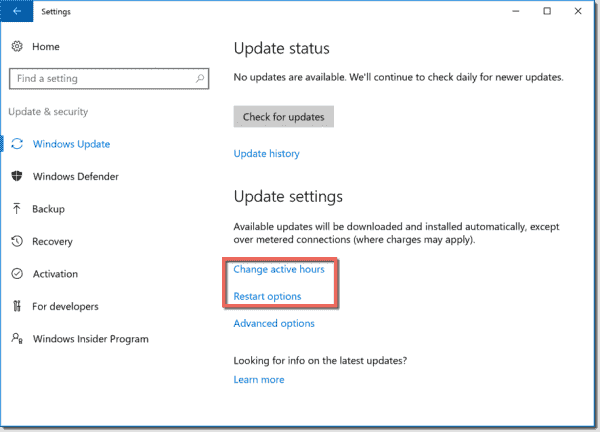
Although it is no longer possible to configure the behavior of Automatic Updates within the Windows 10 settings of the Anniversary Update, two new links are now visible: Change active hours and Restart options.

Change active hours and Restart options Windows 10 1607

Change active hours and Restart options Windows 10 1607

The Active hours option allows you to configure for the times when Windows won’t restart because an update is due to be installed.

Active hours

Active hours

You can configure Active hours through Group Policy. Note that you can only see the new policy after you update the ADMX templates with the latest version for Windows 10 in the PolicyDefinitions folder on your Windows Server or in the Central Store.

Group Policy "Turn off auto restart for updates during active hours"

Group Policy “Turn off auto restart for updates during active hours”

If you apply this policy to a Windows 10 1607 machine, the corresponding configuration in the local settings app won’t change. However, according to my tests, restarts will then be scheduled corresponding to the Group Policy, and the Active hours configuration in the Windows 10 settings will be ignored.

Restart options ^

The Restart options can only be configured when a restart is scheduled. In this case, the user will receive a corresponding systray message and the restart time can then be rescheduled.

Restart options and Restart required message

Restart options and Restart required message

Once a restart is scheduled, the Active hours link in the Windows settings will then disappear.

Active hours link disappears when a restart is scheduled

Active hours link disappears when a restart is scheduled

Wrap-up ^

The fact that the Group Policy configuration for Automatic Updates is no longer displayed in the Windows 10 1607 settings is confusing. However, the ability to centrally and locally configure Active hours, as a way of preventing unwanted restarts, is advantageous. I also appreciate being able to configure another restart time once the updates are downloaded.

Unwanted restarts were certainly the major annoyance of Windows Update. However, if bandwidth consumption is your concern, then you might consider working with metered connections. With the help of a little PowerShell script, you can switch an Ethernet connection between metered and not metered. I will cover this option in my next post.

-1+1 (No Ratings Yet)


Storage Replica in Windows Server 2016


Storage Replica is a new feature in Windows Server 2016 that allows us to do storage-agnostic block-level replication of data.

The main features of Storage Replica:

  • It performs zero data-loss block-level replication of data.
  • It is storage-agnostic (but it requires that we have data volumes, which are NTFS formatted).
  • It is configurable as synchronous or asynchronous.
  • Replication is based on volume source and destination.
  • It uses SMB 3 as the transport protocol and is supported using TCP/IP or RDMA.
  • It can replicate open files, as it operates on block level.

It supports different use cases, including host-to-host replication, cluster-to-cluster replication, and same-host replication (if we want to synchronize data from one volume to another).

Nano Server also supports Storage Replica, but you need to add it as a separate component when building the server image.

The diagram below describes how Storage Replica works with a synchronous configuration. (1) When an application writes data down to the file system (for instance the D: drive), IO filtering will intercept the IO and (2) write it to the log volume on the same host. (3) The data will replicate across to the secondary site and write it to the log volume there. When the data is written to the log volumes it will (4) send an acknowledgment to the primary server, which will in turn send an (5) acknowledgment to the application. The data also will be flushed to the volume from the logs using write-through.

The log volume’s purpose is to record all block changes that occur, similar to an SQL database transaction log that stores all transactions and modifications. In case of a power outage on the remote site, it would need to get all the changes that occurred since the outage in order to compare them.

It is important to be aware that in a synchronous configuration, the application needs to wait for acknowledgment from the remote site. A constrained network  will affect application performance considerably. As most TCP/IP networks add about 2–5 ms latency, it can create a bad user experience; instead consider using RDMA, which has a considerably lower overhead, because it does not use TCP/IP (which gives a much lower latency). So for synchronous replication, recommendations are that we have a maximum of 5 ms latency and high bandwidth available between source and destination resources.

By design, the Data and Log volumes on the remote site will be unmounted and marked as non-accessible.

How Storage Replica works

How Storage Replica works

Now, if we were to configure asynchronous replication, the picture would be quite different. Instead, it would write data locally first to the log file, then send an acknowledgement to the application, giving the same application performance it would give if we didn’t have Storage Replica installed. Next, it would replicate the data from the log volume in the other site and write it to the log volume there. Because the application does not have to wait for the remote site, we do not need to have such strict requirements on the network layer; this allows asynchronous deployment in WAN scenarios. It is also important to be aware that if the network link between the two sites fails, the log volumes on the source would store all block changes until the link comes back up and then replicate the changes that happened since the link went down.

Requirements ^

There are some requirements we need to be aware of before configuring this feature.

  • We need to have to volumes available on each location, one for data and one for logs.
  • Volumes need to be configured as GPT and be the same size at the source and destination.
  • Log volumes need to be identical sizes on both source and destination.
  • Data volumes should not be higher than 10 TB.
  • We need to have Windows Server 2016 as the source and as the target resource.

It is important to note that Storage Replica is a Windows feature that will be available only in the Datacenter edition of 2016.

Installing Storage Replica ^

Launch a PowerShell console with administrator privileges and execute the following command:

This PowerShell command also installs the File and Storage Services server role i (FS-Fileserver). Whereas this feature is not required for Storage Replica to work, we will use it later in this post to run the Test-SRTopology command. After we have successfully run the command Test-SRTopology, we can safely remove the file server role from the servers we want to use with Storage Replica.

For this setup, I have two virtual machines, which have two additional volumes each; I will use them as data and log volumes. Since Storage Replica does not have any UI management, we must use PowerShell to do all configuration.

Before we set up any storage replication options, we need to verify support for our topology. We can do this using the PowerShell command Test-SRTopology; it will generate an HTML report that we can use to see if we have a supported topology. We can use the cmdlet in a requirements-only mode for a quick test as well as a long-running performance-evaluation mode. It is also important that we generate some IO against the source volume while we are running the test to get more-detailed information about the benchmark.

Open PowerShell and make sure that Storage Replica Module is present.

Then we need to test our Storage Replica topology.

NOTE: If you are using non-US regional settings on the Windows Server 2016 TP5, the Test-SRTopology cmdlet might fail when generating the report, giving you the following error message:
WARNING: Plotting chart from file c:tempSRDestinationDataVolumeBytesPerSec.csv failed.
In that case, you need to switch the regional settings to US, reboot, and rerun the cmdlet.

After running the command, PowerShell will generate an HTML report, which will list whether the environment meets all the requirements.

Output from the Test-SRtopology report

Output from the Test-SRtopology report

After we successfully run the cmdlet, we can start setting up our replication configuration.

We can now run Get-SRgroup to see the configuration’s properties. By default, it is set up to run with synchronous replication, and by default the log file is set to 8 GB. You can change it to asynchronous by using the command Set-SRPartnership -ReplicationMode Asynchronous.

PowerShell output from Get SRGroup on source computer

PowerShell output from Get SRGroup on source computer

If we open File Explorer on the destination machine, we will also notice that the E: drive is inaccessible and that the log file is stored on the F: drive.

File Explorer on destionation computer

File Explorer on destionation computer

When we start to write data to the E: drive on the source computer, it will replicate block by block to the destination computer. The easiest way to see how the progress is going is by using Performance Monitoring, since Storage Replica includes a set of built-in metrics.

Performance monitor on destination computer showing IO traffic generated

Performance monitor on destination computer showing IO traffic generated

In upcoming posts, we will take a closer look at more-advanced configuration of Storage Replica using delegated access, sizing, and network configuration; we will also look at how to configure Storage Replica in a Stretched Cluster environment.

-1+1 (No Ratings Yet)


Finding function default parameters with PowerShell AST when working with @PSBoundParameters


The automatic variable $PSBoundParameters contains all bound functions parameters and allows you to pass parameters to another function without redefining them. But how can you pass default parameters? With the help of PowerShell Abstract Syntax Trees (ASTs).

Profile photo of Adam Bertram

Latest posts by Adam Bertram (see all)

When writing code in PowerShell, you’ll occasionally have the need to pass all parameters from a function directly to another function reference inside. This is common in instances where you might have similar functions with similar parameters but not all parameters are the same.

For example, I might have two functions that look something like this:

I can run this, and it performs as you’d expect.

Successful functions

Successful functions

All parameters of each function represent the same thing in both. Notice that the Set-Something function is referenced inside of the Get-Something function. Inside here, I am passing all of the variables (both bound and default) from Get-Something’s parameters to the Set-Something function. This works fine, but it’s not efficient coding. Savvy PowerShellers would know that parameters passed to a function are available inside of the $PSBoundParameters variable. If all of the parameters are inside of this variable already, there’s no sense redefining each parameter and passing it to Set-Something. Instead, we can use splatting and do the following:

Since Thing3 is a default parameter, when you call Get-Something, you’d expect the values of Thing1, Thing2, and Thing3 to be passed to Set-Something.

Let’s see what happens.

The values of Thing1, Thing2, and Thing3 to be passed to Set-Something

Set-Something is prompting for a value for Thing3. Why? Since I set the default value of Thing3 on Get-Something’s parameter, it should have worked, right? No. The reason is that $PSBoundParameters includes only parameters that were bound, meaning it does not contain any parameter arguments defined with a default value.

I need to figure out a way to get the value of Get-Something’s Thing3 variable other than explicitly calling $Thing3. We can do this by using the Abstract Syntax Tree (AST). The AST is a great way to gather all kinds of information about your PowerShell scripts and functions. By using the AST and looking for all of the System.Management.Automation.Language.ParameterAst objects inside of this function, we can discover this information.

To find that default value, I’ll first need to convert the Get-Something function into an AST block. I can do this by calling Get-Command.

Once I have the function that represents as an AST block, I can now search for various components inside using the FindAll () method.

Searching for various components inside using the FindAll () method

You can see that this returns a lot of things other than the parameter name and default value. We’ll need to pare this down a little bit to get something more usable. I’d like to get an output that includes just all of the parameters, with a default value showing their name and value only.

I can do that by digging into the objects a little bit and creating my own calculated property with Select-Object.

This will then give me an output that’s much cleaner.

Cleaner output

Cleaner output

Great! We now have a way to find all of the bound and default values for the Get-Something parameter. Let’s now take the

I can now run Get-Something again, and I now get the default value as well.

Running Get Something again and getting the default value

Running Get Something again and getting the default value

You might be thinking that this would be overkill, and you’d be right for this simple example. But if you find yourself working with functions that contains dozens of parameters with default values, this method will take a ton of time.

If you’d like to save some lines, I’ve wrapped this up into a function called Get-DefaultFunctionParameter, which you can download at GitHub and reuse.

-1+1 (No Ratings Yet)


VMware VSAN – Performance and capacity monitoring


We have set up three different environments by using VMware VSAN technology. We started with VSAN 3 nodes, then VSAN Stretched Cluster, and VSAN for ROBO. Erasure coding with RAID5/RAID6 brings some significant cost savings, especially in larger environments. Today we’ll have a look at which built-in tools VSAN offers to monitor performance and capacity.
Profile photo of Vladan Seget

Vladan Seget

Vladan Seget is as an independent consultant, professional blogger, vExpert 2009-2016, VCAP5-DCA/DCD, VCP, and MCSA. He has been working for over 15 years as a system engineer.

Profile photo of Vladan Seget

Latest posts by Vladan Seget (see all)

We saw that the capacity and deduplication numbers give us an overview of the space utilization, deduplication ratio, and savings by deduplication and compression. Here, I’ll explain how deduplication and compression work within a VSAN environment.

VMware VSAN deduplication

VMware VSAN deduplication

Each time a duplicate copy of data is stored, space is wasted. These blocks of data should only be stored once to ensure data is stored efficiently.

The blocks of data stay in the cache tier when they are being accessed on a regular basis. Once those blocks stop being accessed, the deduplication engine checks to see if the block of data that is in the cache tier has already been stored in the capacity tier. If so, the engine doesn’t store the block twice. Only unique chunks of data are stored in the capacity tier.

The deduplication and compression operation happens only during the destage from the cache tier to the capacity tier, so there is no performance penalty or overhead.

To track those blocks of data, a technique called hashing is used. Hashing is the process of creating a short, fixed-length data string from a large block of data. The hash identifies the data chunk and is used in the deduplication process to determine if the chunk has been stored before.

Compression ^

As the data comes to the environment, when it becomes colder and if the data is unique, then it’s compressed with very efficient OV4 compression. This is near-line compression, not in-line compression, which occurs in the RAM or cache tier. Only data coming from the write buffer to the capacity tier is touched. The data that is still “hot” isn’t compressed, as it is still modified/updated. It is important to note that data is compressed after deduplication.

VMware published a good diagram that explains VSAN deduplication and compression. As you can see in the image below, deduplication and compression work on disk groups.

VMware VSAN deduplication and compression

VMware VSAN deduplication and compression

Capacity monitoring ^

Information about capacity monitoring in a VSAN environment can be accessed in different places. Log in to vSphere web client and go to the datastore view.

VMware VSAN capacity monitoring

VMware VSAN capacity monitoring

A more detailed view with all the VSAN components is available when you select VSAN Cluster > Monitor > Virtual SAN > Capacity View.

This screen gives you both a capacity overview and a deduplication and compression overview (if activated).

You can get a more granular view of VSAN datastore consumption within the Used capacity breakdown section. As you can see in the screenshot below, there are VMDKs, VM home namespaces, and swap objects for virtual machines. There are also performance management objects when the performance service is enabled. The file system overheads are value-associated with the on-disk format file system and checksum overhead.

VMware VSAN capacity monitoring detailed

VMware VSAN capacity monitoring detailed

Capacity of individual disks ^

You can view details of the capacity of individual disks within the VSAN cluster. For this, select VSAN Cluster > Monitor > Virtual SAN > Physical Disks.

Physical disk capacity

Physical disk capacity

VMware VSAN performance monitoring ^

Performance monitoring of a VSAN cluster is easily accessible through vSphere web client. Log in to your vSphere web client and select VSAN Cluster > Monitor TAB > Performance > Virtual SAN.

There you can chose from two different performance monitoring options:

  1. Virtual SAN – Virtual Machine Consumption (shows cluster metrics from the perspective of virtual machine consumption)
  2. Virtual SAN – Backend (shows cluster metrics from the perspective of the Virtual SAN backend)

VMware VSAN performance monitoring – VM consumption

You can see there are different metrics:

  • IOPS – IO operations per second (IOPS) consumed by all VSAN clients, like VMs and stats objects
  • Throughput – shows throughput consumed by all VSAN clients, like VMs and stats objects
  • Latency – average latency of IOs generated by all VSAN clients
  • Congestions – congestions of IOs generated by VSAN clients
  • Outstanding IO – outstanding IO from all VSAN clients in the cluster. The outstanding IO value is determined when an application requests a certain IO to be performed (read or write). These commands are sent to storage devices, and until the commands finish executing, they are considered outstanding IO commands.

The other view, Virtual SAN – Backend, is used to show cluster metrics from the perspective of the Virtual SAN backend. You can find the same values as in the first option but from the VSAN cluster perspective instead.

Then, at the individual ESXi level, you can show the disk group performance. ESXi host views are performance views into disk groups and disk devices. They can be found by selecting the host object, then Monitor > Performance > Virtual SAN – Disk Group, as shown below:

Peformance monitoring ESXi level

Peformance monitoring ESXi level

You can also monitor VM performance. In order to obtain views related to virtual machines, select VM > Monitor > Performance and the appropriate view. Below is the virtual disk view:

VM performance

VM performance

Wrap-up ^

Performance and capacity monitoring in VMware VSAN 6.2 are good enough to give you an overview of various crucial performance parameters. You can dive deep into individual hosts, disk groups, or VMs if you have to track a particular performance issue. Previous versions of VSAN only offered rudimentary monitoring without detailed views, and you often had to work with third-party tools to monitor your VSAN environment.

-1+1 (No Ratings Yet)